The designer your customers use, running on this page.
The court below is live. Pick a sport, resize the pad, change the tile colours, drop a logo on it. It is the same iframe a provider puts on their own website, carrying their catalogue, their prices and the languages they sell in.
A 3D designer built for sports surfaces
Accurate enough to spec from, simple enough for a customer to use. Every picture below came out of the product rather than out of a design tool, and each one says underneath exactly what made it.
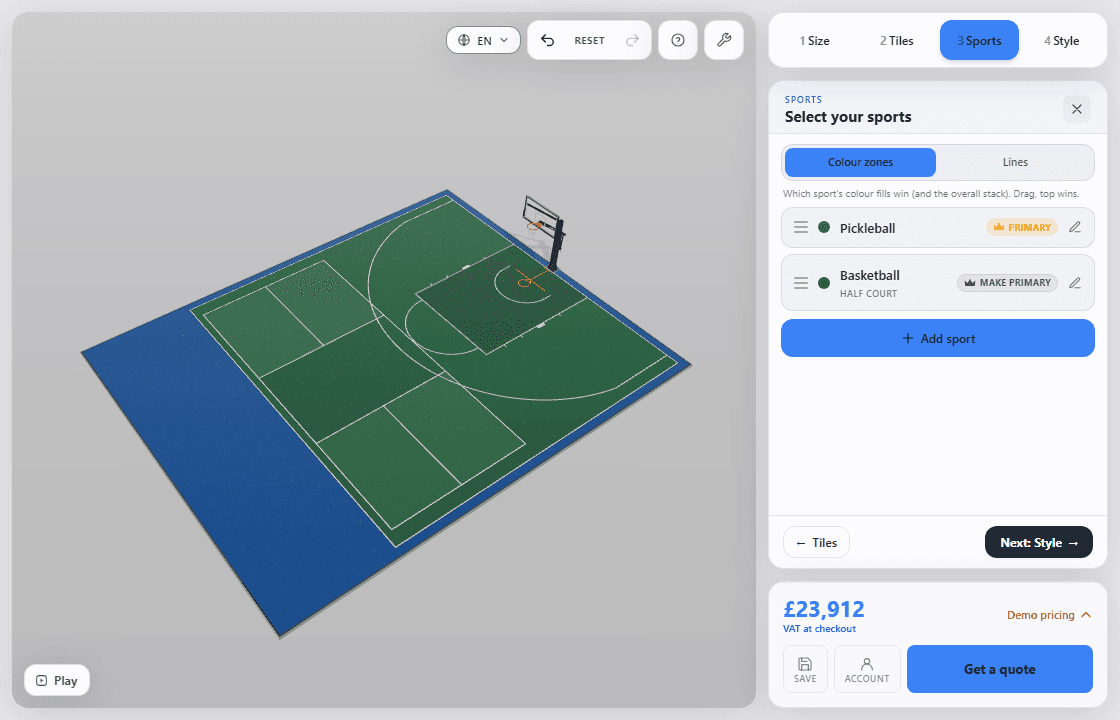
Several sports on one surface
Layer basketball, tennis and pickleball on the same court. Each sport moves, reorders and hides on its own, so a customer can see what they are buying one game at a time.
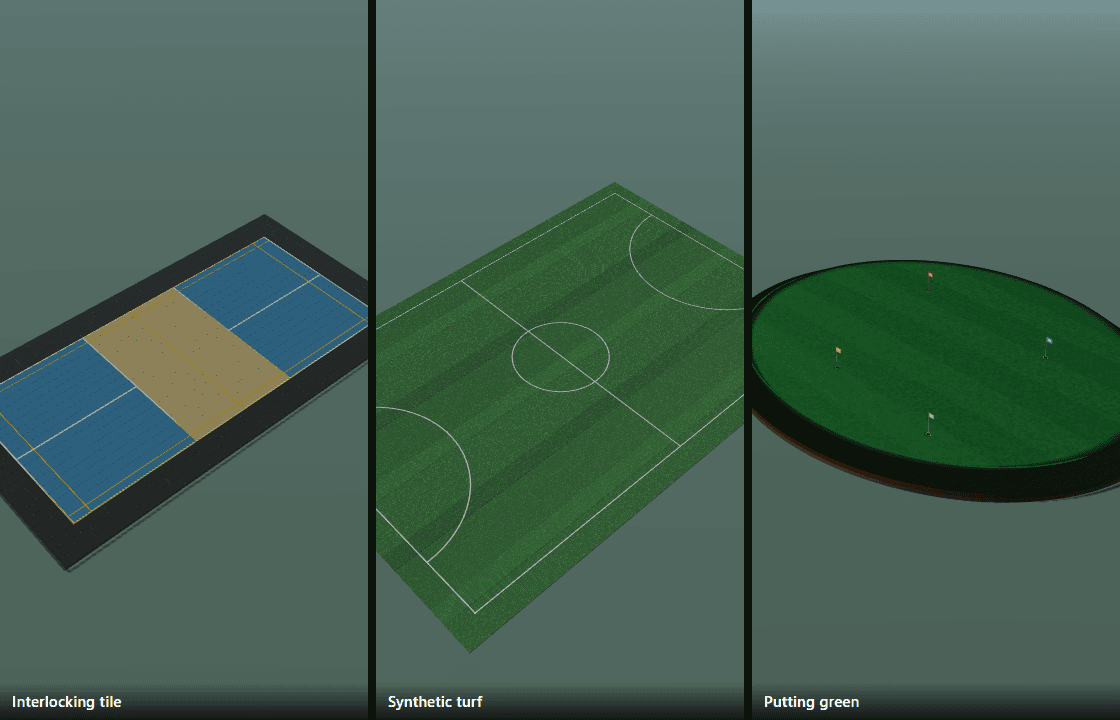
Tile, turf and putting green
Interlocking tile, synthetic turf rolls, or a contoured putting green, whichever of them you actually sell. One design carries one surface family, so this is three of them side by side.
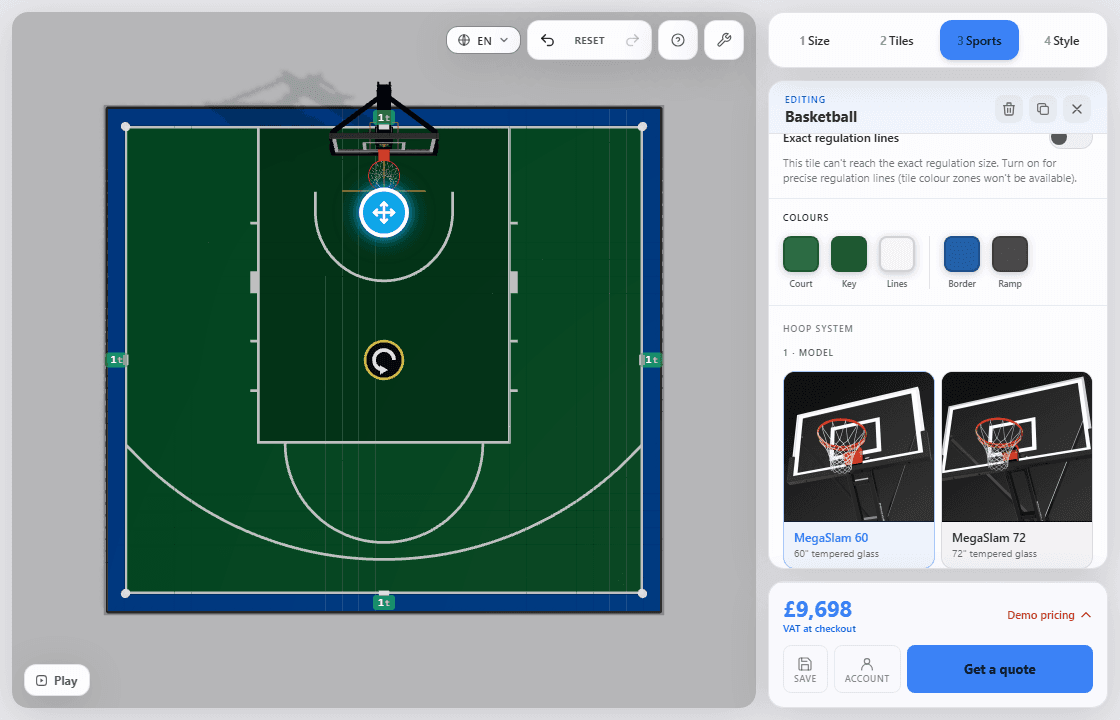
The equipment goes in too
Hoops, nets, goals and rink boards, placed on the court and dimensioned automatically. Swap a hoop and the drawing updates with it.
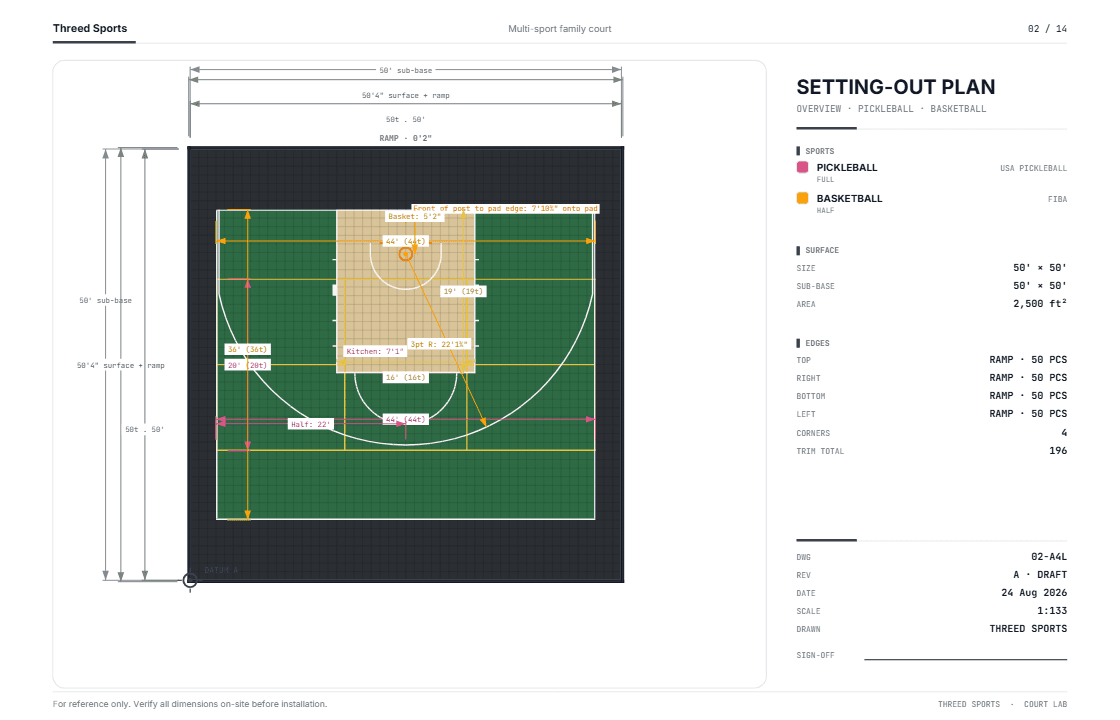
A drawing an installer can build from
Every design exports as a dimensioned A3 spec sheet: measurement tables, equipment schedules and surface data, ready to print.
Put a logo on the court, in the designer above.
Artwork goes into the tile itself as panels of solid colour, so the way a file is drawn decides what it costs to make. The designer puts an estimated print band on yours the moment you choose it, instead of leaving it for someone to find out at quoting.
It is the one thing on this page we did not photograph, because it did not need photographing. Go back up, choose to design it yourself when it asks, and try it with any logo you have to hand.
- 01Open Style, the last of the four steps, then the Artwork tab inside it.
- 02Drop a file on the panel marked Add logo or artwork, or click it and pick one.
- 03It lands on the court with its print band beside it. Move on surface puts it where you want, and the sliders size and turn it.
Every court you have drawn can go back out as marketing.
Tag a design as a showcase card and it joins a reel you can put on any page the designer already goes on. Below is the showcase tenant's, rendering in your browser off the same engine as the designer rather than playing back a recording. Those same saved configurations feed the ad generator in the dashboard, which turns a court into social images and display ad units with the tracking links attached.
Frequently asked questions
Can I embed the court designer on my own website?
Yes, on every plan. Your customers design on your site and their configuration arrives in your pipeline.
What is the difference between the internal designer and the embed?
The internal designer is the full tool your team uses to draw courts, export PDFs and manage saved configurations. The embed is the customer-facing version that sits on your website, in your branding, with a simpler set of controls.
Do customers need an account to use the embed?
No. They can design without signing in. Signing in matters only when they want to save the design or carry on to checkout.
Can I use my own Shopify store for checkout?
Yes, on the Grow plan and above. The order completes in the Shopify storefront you already run.
Want this one running on your own catalogue?
Send us your tile range and we will build you a working designer on your own products, so you can try the real thing rather than ours.